Your Spoonflower payment statement is the closest thing you have to a bank ledger for your shop. Every sale, cancellation, bonus and payout is in there, one line per transaction. It is also one of the more confusing files a designer has to read, because it mixes retail sales, store credit and cash movements in the same list and writes three numbers into a single Amount cell.
This post walks through the file exactly as Spoonflower exports it, so you know what each column and each row type means, and how Lumitela reads it.
Where the statement comes from
On spoonflower.com, open your studio and go to Payment statements. Each period can be downloaded as a CSV. If you use the Lumitela extension, its Spoonflower tab pulls every statement year by year so you never have to download them by hand. The guide Import your Spoonflower sales history covers both routes.
The columns
A Spoonflower statement CSV has eleven columns:
- Date: the transaction timestamp, in UTC.
- Type: one of
sale,cancel,creditordebit. This is the column that tells you what kind of line you are looking at. - Qty: units sold. A cancellation carries a negative quantity.
- Size: the product size, for example "Fat Quarter", "1 meter", or "Imperial Wallpaper Swatch".
- Design and Design id: the design's title and its numeric Spoonflower ID. The ID is the reliable one; titles can be edited later.
- Substrate: the fabric or wallpaper it was printed on, such as "Petal Signature Cotton" or "Pre-Pasted".
- Customer: the buyer's Spoonflower handle, or "a guest user" for a checkout without an account.
- Amount: what the line added to or took from your balance. On sale lines this cell packs three numbers together, which we unpack below.
- Balance: your running balance after this line.
- Description: a sentence-form restatement of the line. For credits and debits this is the only place the reason is spelled out.
Sale rows: gross, withheld, net
A sale line's Amount looks like this:
$0.45000 (-$0.02250 withheld at 5%) = $0.42750
Read it left to right. The first figure is your gross commission on the sale. The bracketed figure is the amount Spoonflower withheld, with the rate it applied. The final figure is your net, which is what actually reached your balance. The percentage is the withholding rate on your account; 5% is common, but read it from your own statement rather than assuming. If your statements show no bracketed part at all, nothing is being withheld and gross equals net.
Lumitela reads all three numbers from that cell and stores them separately as gross, withheld and net. It also remembers the withholding rate from your most recent withheld sale line and uses it to estimate the net on brand-new orders that so far exist only as an email, until the next statement replaces the estimate with the real figure. The reasoning is in Fees, net sales and the Spoonflower bonus schedule.
Note what a sale row does not tell you: the retail price the buyer paid, the shipping address, or the order number. Those live in the order notification email, which is why Lumitela reads both.
Cancel rows
When an order is canceled, Spoonflower adds a cancel line with a negative quantity and a negative Amount that reverses the commission, and a Description beginning "Order Canceled" with the design ID. It does not delete the original sale line. So if you add up sale lines alone, you will overcount; the cancel line is what brings the total back down.
A cancellation is often followed by a credit line described as "Spoondollars Given | withholdings refund", which returns the amount that was withheld on the original sale. Lumitela treats the cancel line as removing the order from your sales, and the withholding refund as the money-side correction that goes with it. The guide Spoonflower and Etsy orders and cancellations explains how a canceled order shows up in the app.
Credit rows
Credits are money added to your balance that did not come from a single sale. The Description tells you which kind:
- "Spoondollars Given | 3.0% Bonus Commission - 8/2026" is your monthly volume bonus. The percentage is the tier you reached and the month is the month you earned it, which is the month before the credit's Date: the bonus for May posts in early June. Spoonflower pays this bonus once a month's net earnings cross a threshold: 1% of retail from $300, 3% from $1,000, and 5% from $1,500. Lumitela reads these lines to show the actual bonus for closed months and estimates the current month from your earnings so far. See Dashboard and Spoonflower bonus tier tracker.
- "Spoondollars Given | withholdings refund" returns withholding after a cancellation, as above.
- "Spoondollars Given | Refund was initiated..." is a refund Spoonflower issued to your balance on a specific order.
Debit rows
Debits are money leaving your balance:
- "Spoondollar Payout for
" is a payout to you. These are large negative lines and they are the reason the Balance column periodically drops back toward zero. - "Spoondollars applied to order 1234567" is store credit you spent on your own Spoonflower order, for example when you buy fabric to fulfill an Etsy sale. That is a purchase, not a sale, and Lumitela does not count it as one.
The Balance column
Balance is simply the running total after each line, newest lines first in the export. If you want a quick sanity check on a statement, take any line's Balance, subtract its Amount, and you should land on the Balance of the line below it. Payout debits are the big steps down; everything else is small steps up.
Why the statement and your order emails disagree
The statement is the money side. The order emails are the retail side. They describe the same sales from different angles, so they never quite line up:
- The email shows the retail price and the buyer's details; the statement shows your commission and the buyer's handle.
- The email arrives the moment the order is placed; the statement line can carry the same timestamp but only appears once the statement is published.
- A cancellation reaches the statement as a cancel line; it reaches your inbox, if at all, as a separate cancellation email.
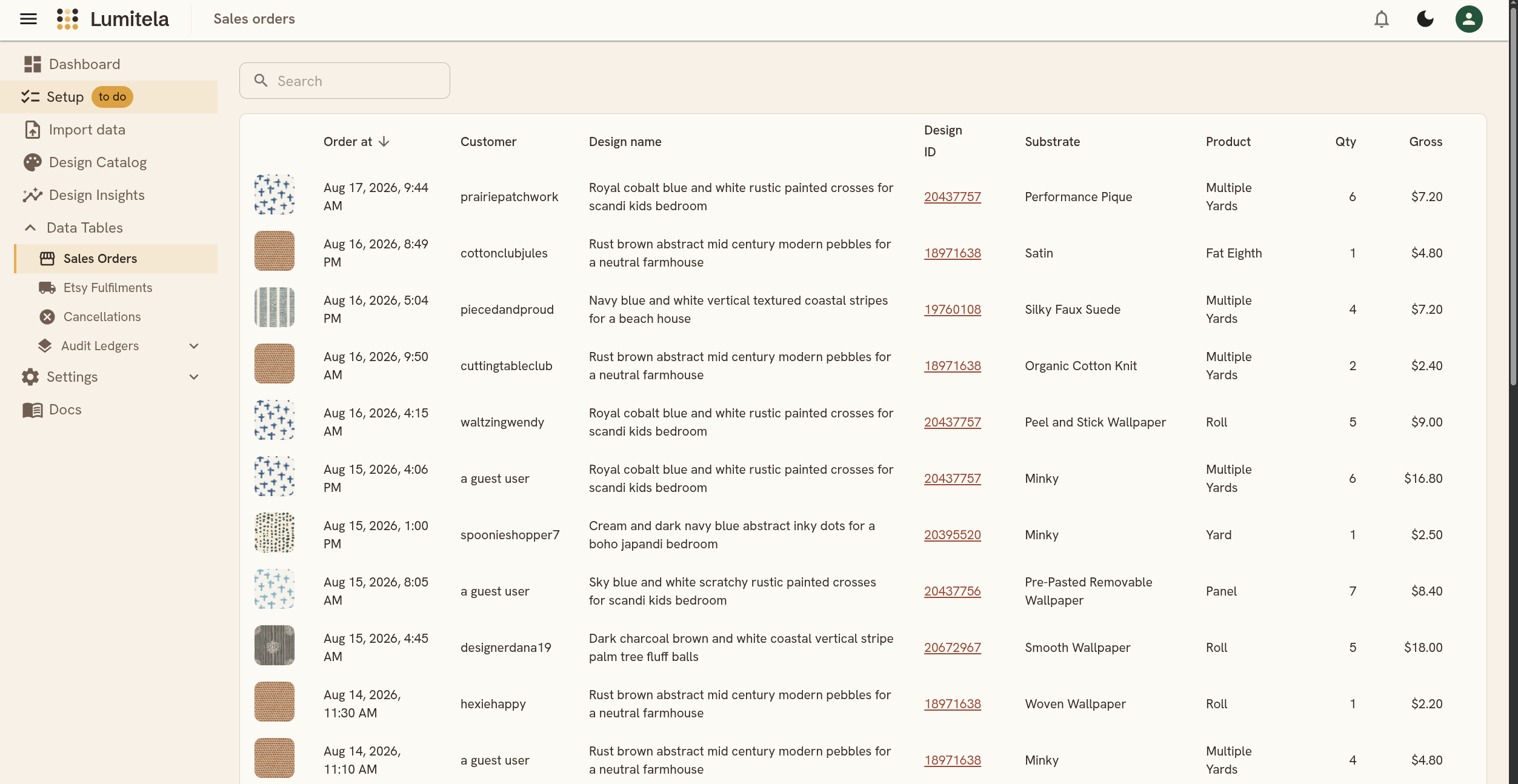
Lumitela imports both and pairs each order email with the statement sale lines for the same design ID placed within a couple of minutes of it, so each order is counted once with its retail detail attached and its real net figure filled in from the statement.
Re-importing is safe
Every statement row Lumitela stores is fingerprinted from its own contents. Drop the same CSV twice, or two overlapping periods, and the repeated rows come back as "already imported" rather than being counted again. That makes it safe to pull statements year by year with the extension and top them up later. The Audit ledgers show you every imported row exactly as Spoonflower wrote it, so if a total ever looks off you can check it against the source.