Import your Spoonflower sales history
Why import your history
Email forwarding only catches orders from the moment you turn it on. Everything before that lives in two places: Spoonflower's own payment statements, and the order emails already sitting in your inbox. Importing both is how that history gets into Lumitela.
Get your Spoonflower statements
Spoonflower's payment statements are your financial ledger: every sale, fee, and payout, one CSV per period. You can bring them in with the extension, or do it by hand.
The extension's Spoonflower tab pulls every statement year by year, and its guided first import includes them automatically. If you sell on Etsy too, its Etsy tab pulls your Etsy statements the same way, month by month.
Or do it manually. Not on Chrome, or prefer to handle the files yourself? The manual route works just as well:
- Sign in on spoonflower.com and open your studio.
- Open Payment statements and download the CSV for each period you want in Lumitela.
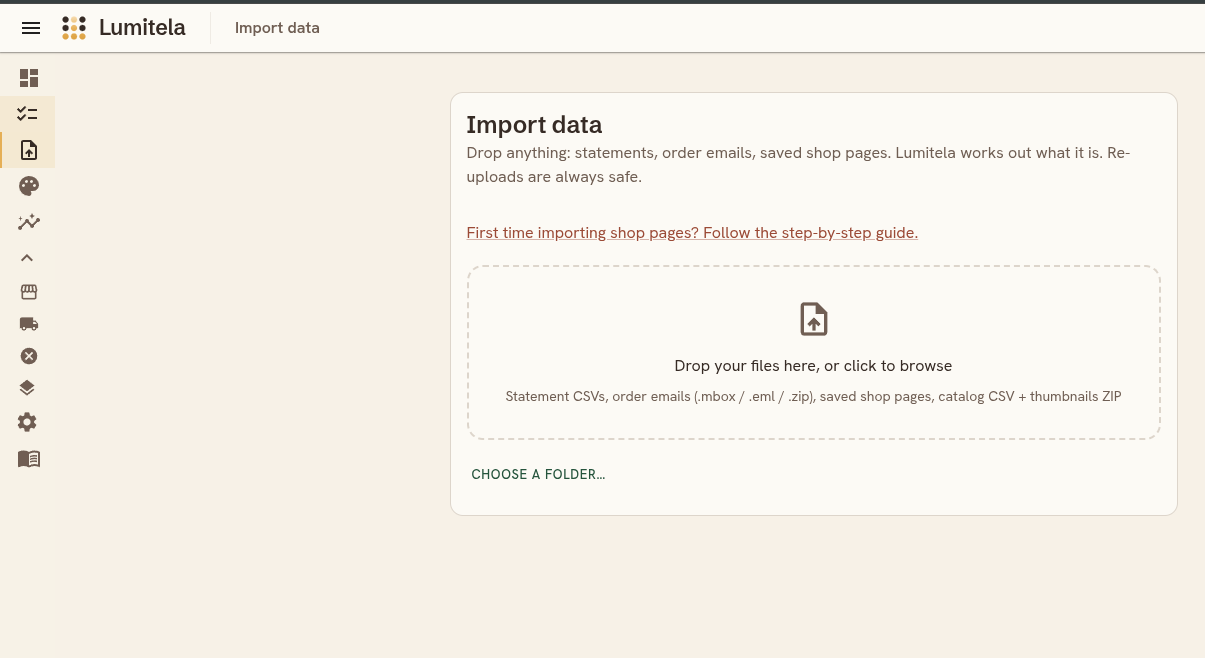
- Drop the CSVs on the Import data page. Several at once is fine.
Etsy statement CSVs are dropped and imported the same way, once the Etsy channel is turned on in your profile.
Not sure what each line on a statement means? How to read your Spoonflower earnings statement walks through every column.
Export your order emails
Order emails are the retail record: what got ordered, by whom, and for which design. Statements can't tell you this; an Etsy statement, for example, carries the fees and totals but not what was actually on the order. And for Etsy sellers there are two kinds that matter: the Etsy order emails themselves, and your Spoonflower receipt emails for the orders you placed to fulfill them, which is what makes margin matching possible.
For a small batch (up to about a hundred emails), forward them straight from your mailbox: select them and use your mail app's Forward as attachment, sending up to 40 in one message to inbox@lumitela.com. Opening an email and pressing plain Forward won't work; it has to be forward as attachment, from the selection menu. Do this from the address you've claimed and verified in Lumitela: that verified address is how the batch is recognized as yours. If you forward before verifying, nothing is lost; the batch delivers by itself the moment your address verifies, and re-forwarding it later works too.
For your whole history, the easiest way out of Gmail is Google Takeout, and the filters you created for email forwarding do most of the work:
- In Gmail, open Settings → Filters and blocked addresses, edit each of your order email filters, tick Apply the label (create labels like "spoonflower_orders", "etsy_orders", "etsy_fulfilments"), and, importantly, tick Also apply filter to matching conversations before saving. That last tick is what labels all the old mail already in your inbox, not just future arrivals.
- Go to takeout.google.com, press Deselect all, then scroll down and tick only Mail.
- Click All Mail data included, turn off "Include all messages in Mail", and tick just your new labels. (If a freshly created label isn't listed yet, give it a minute and refresh.)
- Export once as a
.zip. Google emails you when it's ready; a large mailbox can take a while to prepare. - Download the
takeout-....zipfile and drop it, as is, on the Import data page. Lumitela reads the.mboxfiles inside it directly and works out for itself what each one contains.
Only the labels you picked leave your mailbox, nothing else. Not on Gmail? Any export of your order emails works: Lumitela reads .eml and .mbox files, and takes them in bulk. Drop a .zip of them (this is how Fastmail's export works, for example), drop a whole folder of email files, or use Choose a folder… on the Import data page to pick the folder your mail app exported into.
Whatever you drop, Lumitela only keeps messages from Spoonflower's and Etsy's order-notification addresses. Anything else in the file is discarded in your browser before it's uploaded, so a mixed export is never a privacy problem.
What each source gives you
- Statements are the money side: gross and net amounts, fees withheld, and your running balance, one line per transaction.
- Order emails are the order side: the customer, the design, the substrate, and the order date, in more retail detail than a statement line carries.
Importing both gives Lumitela the fullest picture; either one alone is still useful.
Re-importing is always safe
Every row Lumitela stores is fingerprinted from its own contents. If you drop a statement or email export you've already imported, whether by accident or because it overlaps an earlier one, the repeated rows come back as "already imported" instead of being counted a second time. That means you can re-run an import, re-run the extension's sync, or hand someone else the same file, without ever double-counting a sale.