Design Catalog: your Spoonflower designs and colorways
The wall and selecting designs
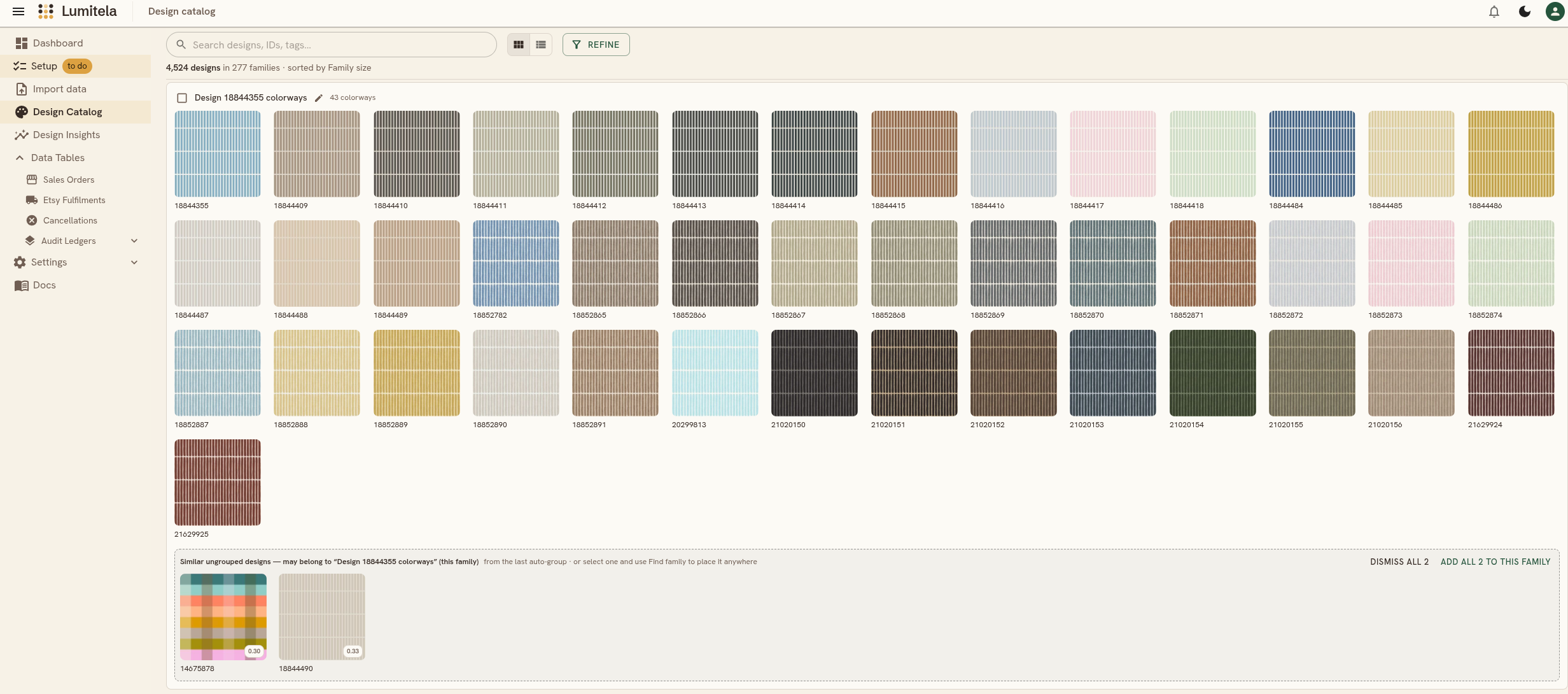
The Design Catalog's default view is the wall: your designs as thumbnail tiles, with colorway families shown as their own labeled sections and everything else running loose below them. Click a tile to open its design detail panel, described further down this guide. Hover a tile and click its circle in the corner (or click any tile while a selection is already active) to select it instead of opening it; shift-click extends a range, and Esc clears the selection from anywhere on the page.
The bar at the top keeps to three things: search, the gallery/table view toggle, and one Refine button. Typing in search dims tiles that don't match (it looks at titles, design IDs, and collection names) and hides families with no match at all, so you can find a design fast without losing your place. A count line underneath shows how many designs and families you're looking at, which sort is active, and a Clear filters link whenever something is narrowing the wall. The Refine button carries a small badge counting your active filters.
The Refine drawer
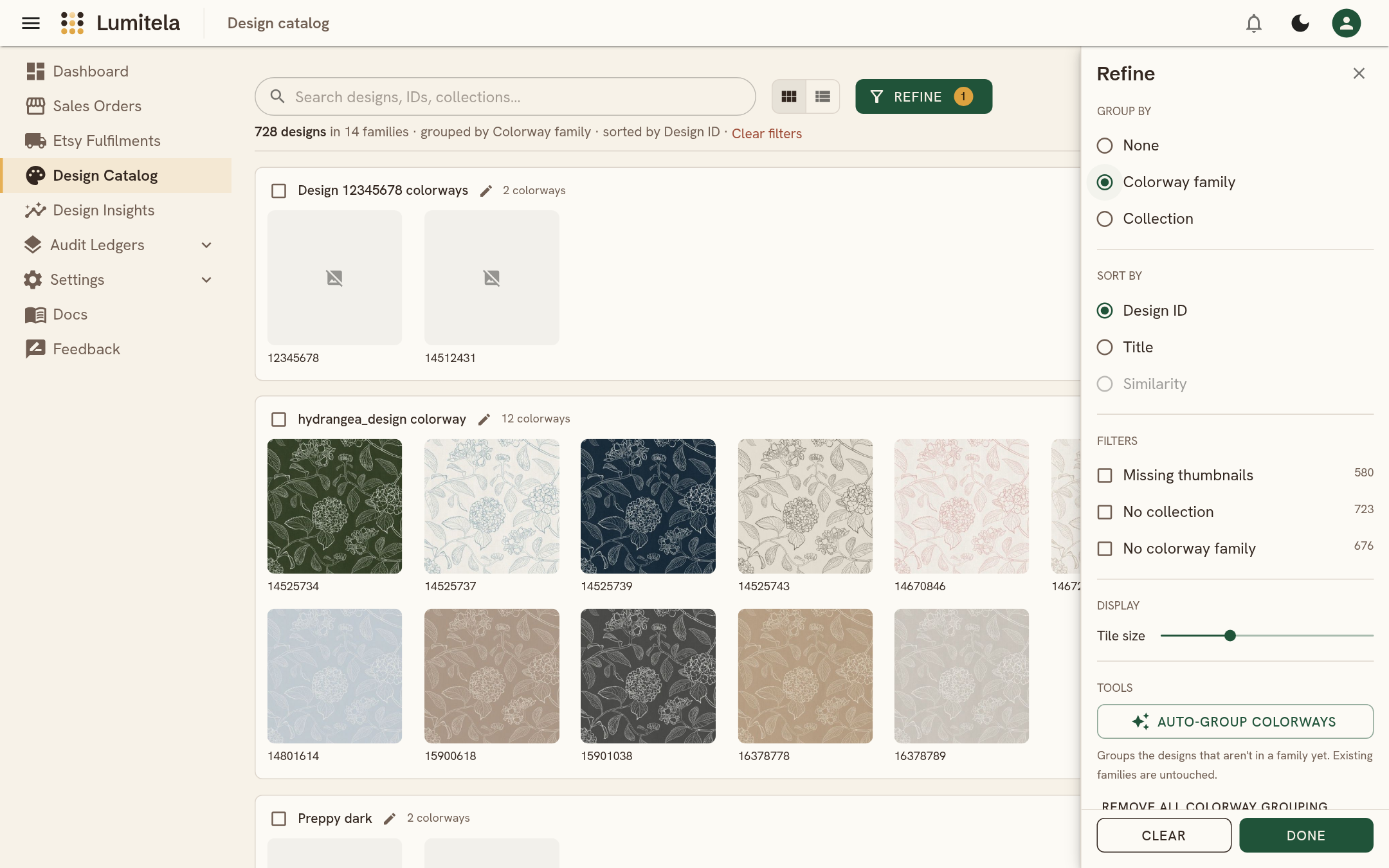
Everything else lives in the Refine drawer, which opens as a side panel (or a bottom sheet on a phone). It asks three questions, and remembers your answers until you change them:
- Group by: None shows one flat wall of tiles. Colorway family shows each family as a card, with the designs that aren't in a family underneath. Collection shows one card per Spoonflower collection, with the designs that aren't in any collection underneath. A design that sits in several collections appears in each of them. Grouping is a gallery feature, so it's grayed out in table view, and Colorway family is grayed out until you've grouped something (see below).
- Sort by: Design ID (the order you created them on Spoonflower), Title, or Similarity once you've run auto-grouping. The sort applies inside each card and to the order of the cards themselves. In table view, sorting is by Design ID or Title, and the column headers flip the direction.
- Filters: Missing thumbnails, No collection and No colorway family. Tick more than one and only designs matching all of them stay. Each filter shows how many designs it matches on its own.
- Display: a tile size slider for the wall, and on a phone the gallery/table toggle lives here too.
- Tools: the colorway grouping actions, covered below.
Filters also live in the page address, so a filtered view can be bookmarked or shared. Search matches collection names as well as design titles and IDs, so typing a collection's name keeps that whole collection on the wall.
Collections
Your Spoonflower collections come across with the browser extension's Design Library sync, so the same collections you organize your shop with are the ones you filter and report on here. Lumitela reads them; it never changes them. Add or move designs in your Design Library on Spoonflower, then sync, and Lumitela follows. Collections are separate from colorway families: a family says "these are the same design in different colors", while a collection says whatever you decided it says on Spoonflower ("Florals", "Christmas 2026", "Nursery pastels").
- Names are Spoonflower's: a collection is shown under exactly the name it has on Spoonflower, like a design's name and id. To rename one, rename it on Spoonflower and sync again with the extension. If Lumitela only has the shortened form of a long name it shows a small ellipsis after it; the next successful sync fetches the full name.
- Browsing them: open Refine and set Group by to Collection to see the wall as one card per collection. To find designs you haven't filed anywhere yet, tick the No collection filter.
- Private collections show a small lock. Every collection chip in a design's detail panel links to that collection's page on Spoonflower.
- Keeping up to date: collections come across the next time you sync your Design Library with the Lumitela extension (version 1.4.0 or later). New items only refreshes your list of collections; to pick up designs you've added to or moved between collections, run Tags and collections or a Full re-sync.
Colorway families and auto-grouping
A colorway family is the same design available in several different palettes, colors, or fabric prints, linked together so Lumitela can report on them as one family in Design Insights. Grouping designs into families is opt-in: importing or syncing your catalog never groups anything on its own, and new designs stay outside families until you ask Lumitela to group them. The actions live under Refine → Tools:
- Auto-group colorways groups the designs that aren't in any family yet, by matching how their thumbnails actually look. Existing families are left alone, so it's not destructive and needs no confirmation.
- Remove all colorway grouping removes every family outright, leaving every design on its own. Your collections and tags are untouched, but any family names and shelf dismissals are cleared too, so the next auto-group run starts from a clean slate. This can't be undone, so it asks you to confirm first.
You can also rename a family: click the pencil on its header and choose Rename family. The name you give it is used everywhere the family appears, including its section header in Design Insights.
The suggestion shelf
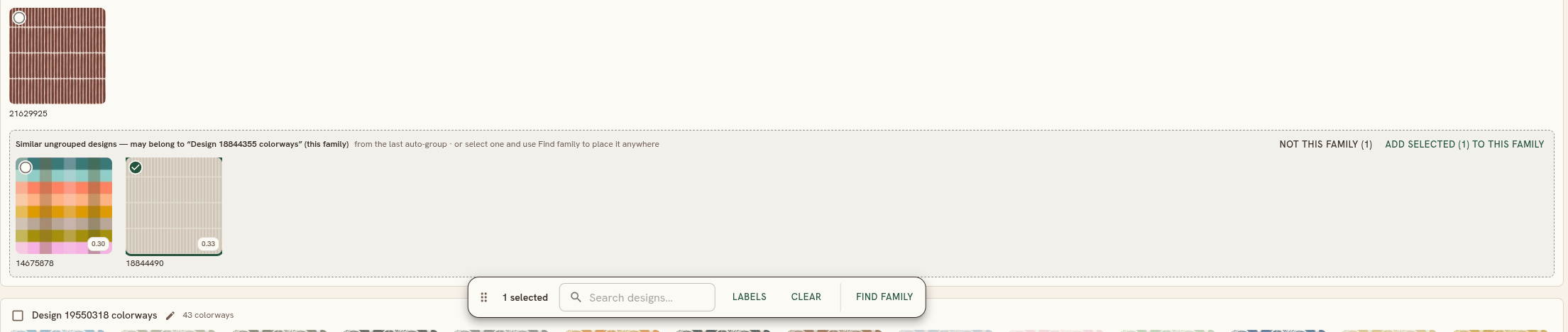
After an auto-group run, a family can carry a suggestion shelf: a dashed strip underneath it listing similar ungrouped designs that look close, but not quite close enough to have been grouped automatically. Each shelf gives you two ways to resolve it, either for everything on the shelf at once, or for just the designs you've ticked on it:
- Add to this family links the shelved designs into that family.
- Not this family (or Dismiss all) takes them out of the suggestions. This is permanent: those designs won't be suggested for this family again, even on a future auto-group run. Running Remove all colorway grouping clears all your dismissals and starts the suggestions over.
The floating selection bar
Selecting one or more tiles brings up a floating action bar. It carries its own search field, so you can filter the wall down without losing your selection, plus:
- Clear to drop the selection.
- Link colorways, once you've selected two or more designs, to link them as one colorway family. Its label adapts to what you've selected: Split into new family when you've picked some (not all) members out of an existing family, or Merge N families when your selection spans several whole families.
- Unlink, when your selection already belongs to a family, to remove those designs from it.
- Find family, to look up the right colorway family for a loose design, or to move an entire mis-grouped set into a better one. It opens a side panel ranked by how closely each existing family matches, with a manual search as a fallback if the shortlist misses.
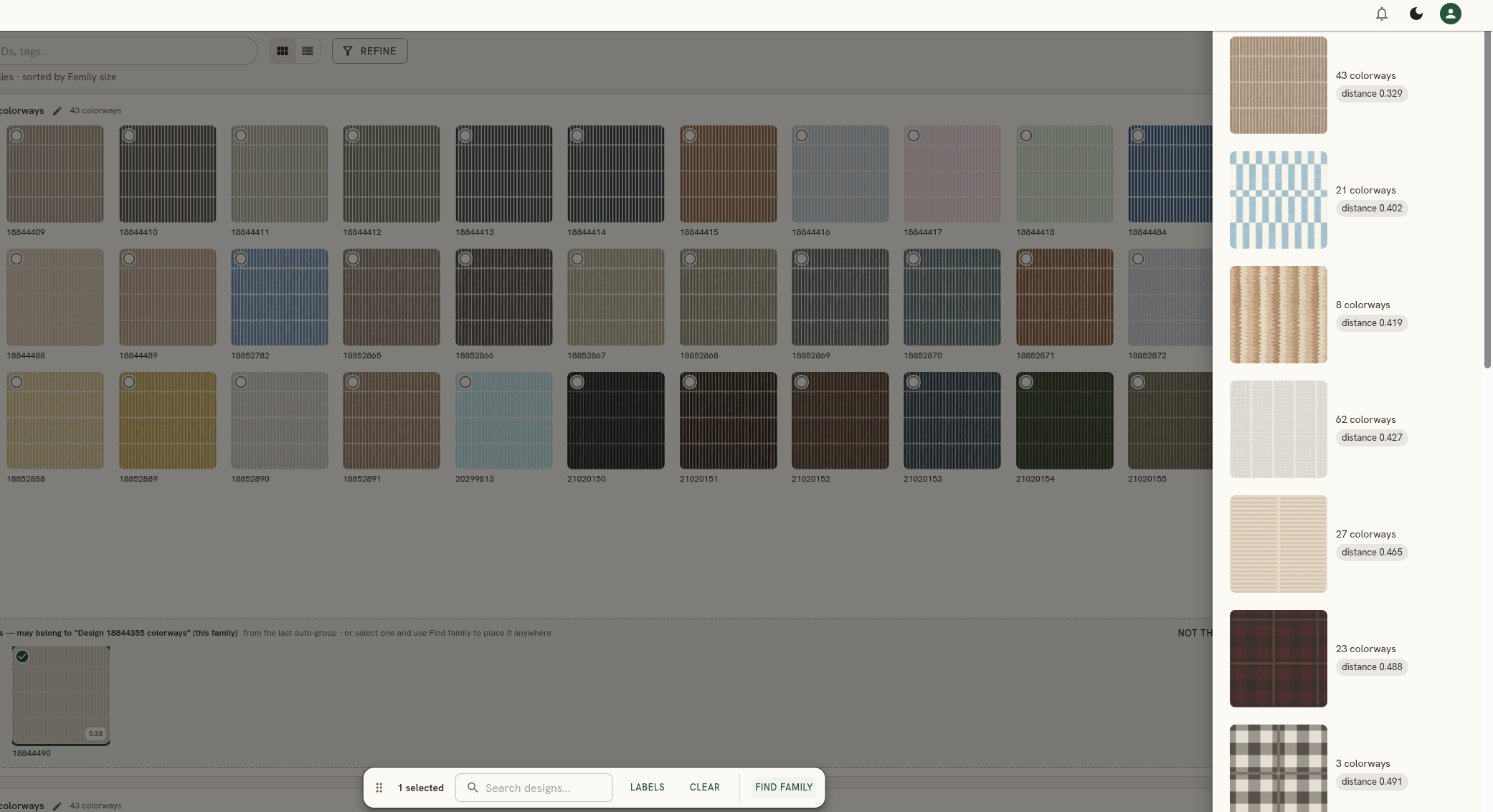
Table view
Table view lists your designs as rows instead of tiles: a thumbnail, Design ID, Title, a Collections column showing every collection each design is in, and a link out to its Spoonflower design page. It's server-paginated (the wall isn't); the Design ID and Title columns sort by clicking their headers. Selection checkboxes and the floating action bar work the same way here as on the wall. On a phone, table view becomes a card list; press and hold a card to start selecting.
The design detail panel
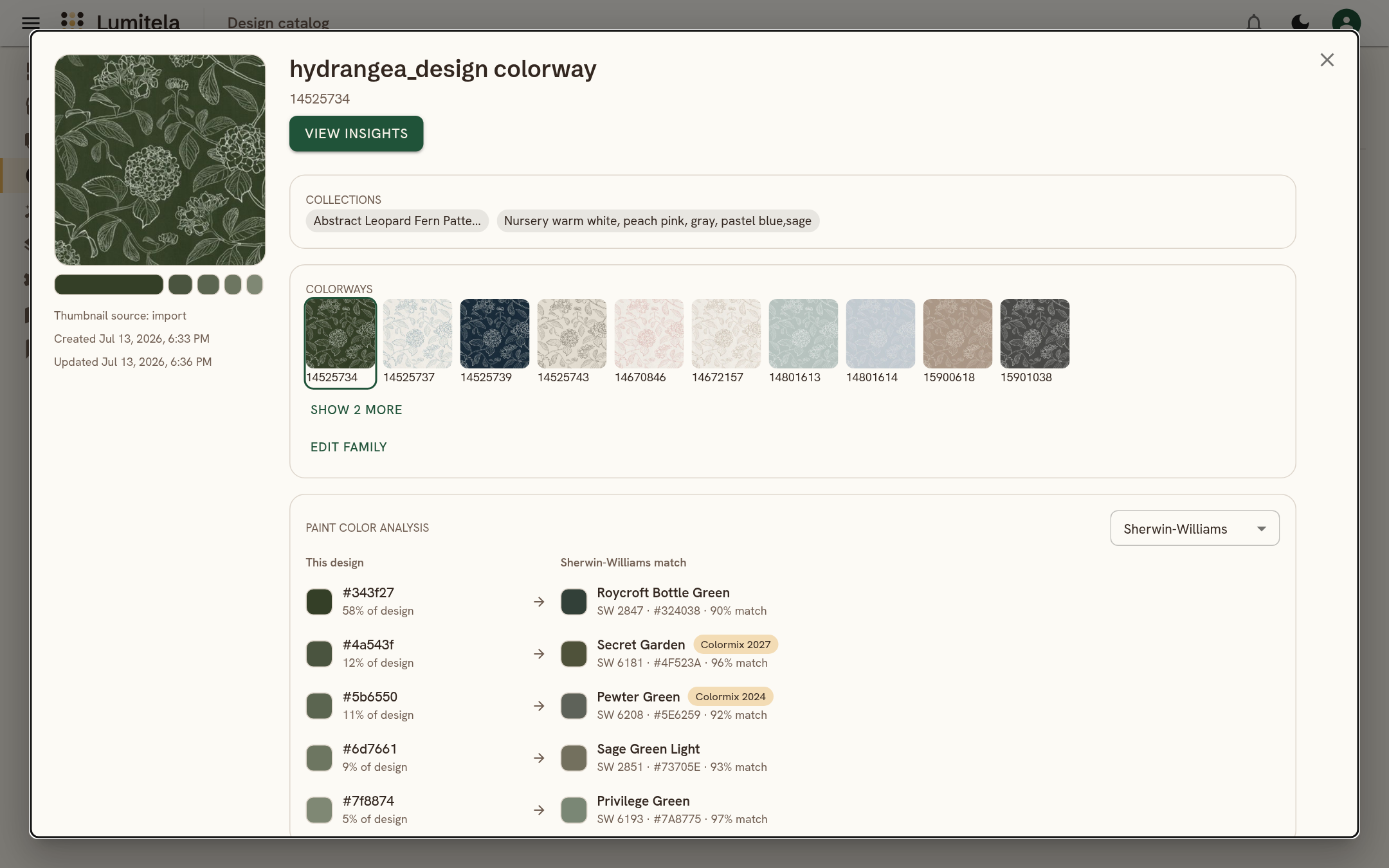
Click any design to open its detail panel over the catalog. Close it with the X, the Escape key, a click outside it, or your browser's Back button, and the catalog is exactly where you left it. The panel shows a large thumbnail, its title, a link to view it on Spoonflower, and a read-only row for each of its catalog fields (design page URL, thumbnail source, external thumbnail, which import it came from, and when it was created and last updated). Designs synced by the extension also show their Spoonflower description here, in its own panel. Two rows sit right there:
- Collections: every Spoonflower collection this design is in, each one a link to that collection on Spoonflower. Read-only here; curate on Spoonflower and sync.
- Colorways: every sibling in its family, with an Edit family button to split a colorway out or unlink it, the same actions the floating selection bar offers on the wall.
Designs with a thumbnail also get a color palette under the thumbnail (the same one the Spotlight shows) and a Paint color analysis: each of the design's main colors, with how much of the design it covers, matched to the closest paint color from Sherwin-Williams, Benjamin Moore or Farrow & Ball, with the paint's name, code and a match percentage. A pill marks colors from a named collection, such as a Color of the Year. Pick the brand on the panel itself; Sherwin-Williams is shown first unless you set a preferred brand under Profile, Account, Locale. Paint color matching shows how designers put it to work.