Import your Design Library manually
When to use this
This route is optional. Automatic sync through the Lumitela extension stays the easiest way to import your Design Library, and you can try it again at any time. Sometimes Spoonflower shows a message saying it "wants to check your browser" and the sync stops until it is cleared. If that keeps happening, you can save your Design Library pages yourself and hand them to Lumitela instead. You can switch between the two whenever you like.
You can also open this guide from the Import data page: choose Extension sync issues? See here how to import manually.
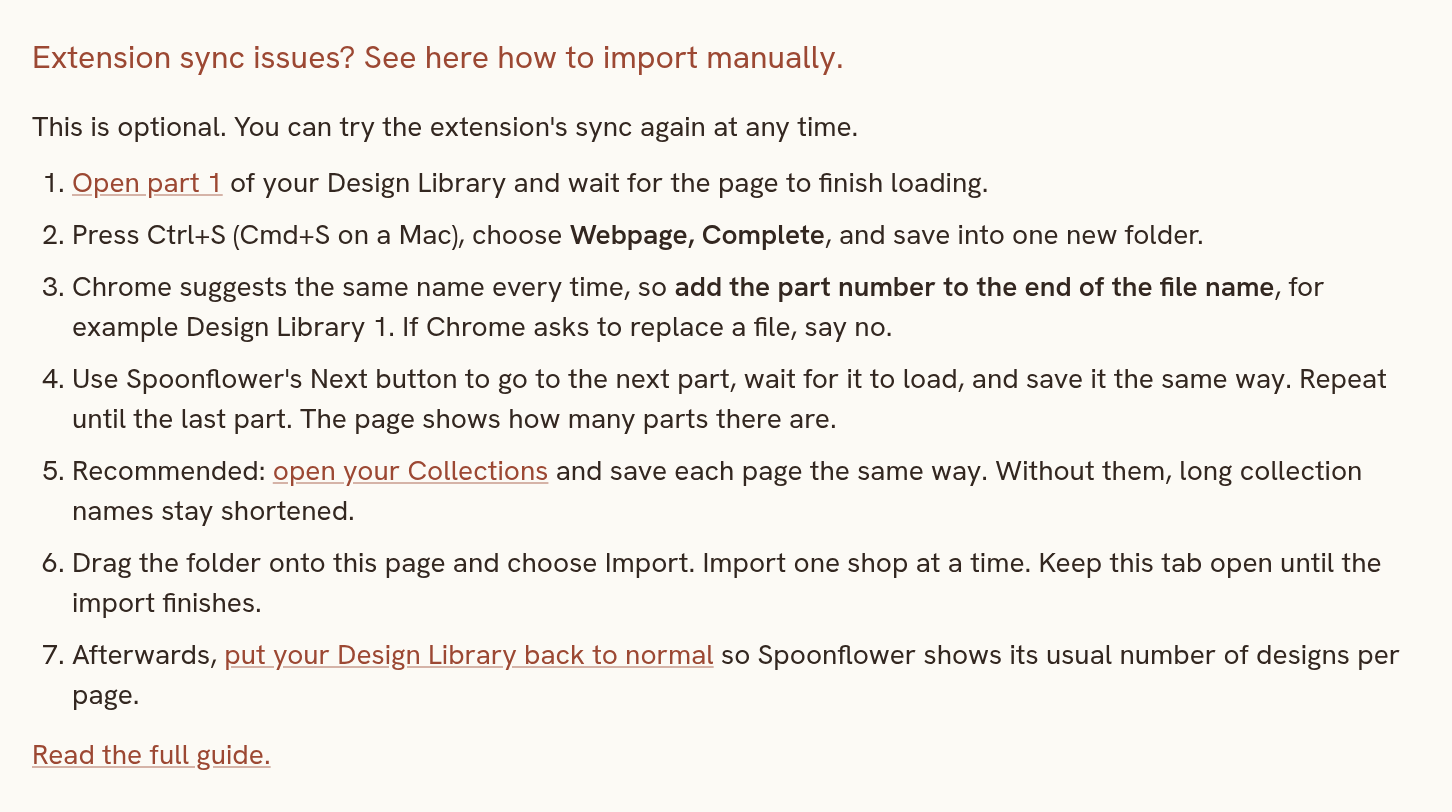
What you will do
You save your Design Library in parts of up to 500 designs each, then drop the saved files onto the Import data page. Each part takes about a minute to load and is about 40 MB once saved.
- On the Import data page, open Extension sync issues? See here how to import manually, then choose Open part 1. Your Design Library opens in a new tab, in your own logged-in browser. Wait for the page to finish loading, which takes about a minute.
- Press Ctrl+S (Cmd+S on a Mac). In the Format menu on a Mac, or the Save as type menu on Windows, choose Webpage, Complete, and save into one new folder.
- Add the part number to the end of the file name, for example
Design Library 1. Chrome suggests the same name every time, so skipping this overwrites the part you saved before. If Chrome asks whether to replace a file, say no. - Use Spoonflower's own Next button to go to the next part. Wait for it to load, and save it the same way. Repeat until the last part. The page tells you how many parts there are.
- Recommended: open your Collections view and save each page there the same way. Without this, long collection names stay shortened on a first import, and collections have no public or private status, Spoonflower link or cover until a later save or sync supplies them.
- Drag the whole folder onto the Import data page and choose Import. If you have two shops, import one shop at a time. Keep that tab open until the import finishes.
What the report tells you
When the import finishes, the report shows how many designs landed, how many parts and thumbnails were found, and whether tags and collections were saved. If a few parts are missing, the report names them. Importing only some parts is fine, and the report then just says how many came in. Importing the same folder again is always safe, so you can add a missing part and drop everything once more.
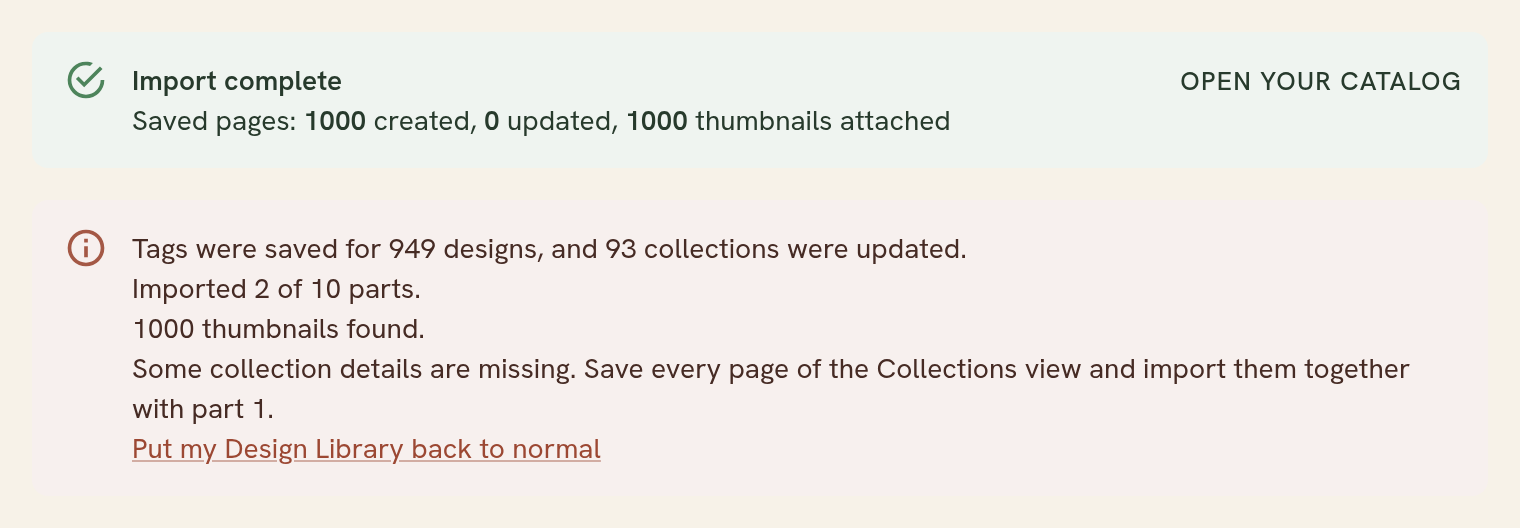
The report also offers Put my Design Library back to normal. Saving large parts works by asking Spoonflower to show 500 designs per page, so this link takes your Design Library back to its usual 72 per page. It stays in the guide too, in case you close the report.
Catching up later
The same steps work as a catch-up. Your newest designs come first, so saving just part 1 picks up everything added since your last import. You do not need to save the rest.
Designs you have deleted on Spoonflower stay in Lumitela when you import this way. Manual imports only add and update designs, they never remove any.