Design Insights: what sells on Spoonflower and Etsy
Picking what you're looking at
Design Insights ranks every design you've sold, for whatever period and channel you choose. The bar at the top keeps to four things:
- Search filters live as you type; matching designs stay full-brightness and their non-matching siblings dim, so you keep the context of which section they're in.
- Gross / Units picks the metric designs are ranked by within each section. Each sold tile carries a corner pill showing that same metric, so what you see on a tile is always the number it's ranked by.
- The period picker switches between All time, a single Year, or a single Month.
- The Refine button opens the drawer for everything else, with a badge counting your active filters.
A scope line underneath spells out exactly what you're looking at ("Ranking 3,544 designs by Gross · All channels · no exclusions") with a Clear link to reset it.
The Refine drawer
- Channel (All channels / Etsy / Spoonflower) appears only if you've turned on Etsy as a channel; with only one channel active, there's nothing to filter, so it stays hidden.
- Exclude products and Exclude substrates let you take whole product types or substrates out of the ranking, each listed with how many orders it accounts for. Handy for questions like "how do my designs rank if I set wallpaper aside?" Your exclusions are remembered for next time.
- Collections narrows the page to designs in every collection you pick, the same Spoonflower collections you see in the Design Catalog.
- View, covered below, decides how designs are sectioned.
Unlike a live filter, the drawer collects your changes and applies them together when you press Done.

The View setting
The View has three settings:
- Collections sections designs by your Spoonflower collections. A design that sits in more than one collection shows up in every one of those sections, so sections can overlap and their totals won't sum to your overall revenue; anything in no collection lands together in one "Not in any collection" section at the end.
- Colorways sections designs by colorway family instead, labeled with the family's name. A design that isn't part of any colorway family gets its own small section, one per design, rather than being lumped in with every other loose design.
- No grouping drops sectioning entirely and shows every design sold in the period as one flat, ranked wall.
Each section's header shows how many of its designs sold in the period against its total design count, plus the section's combined gross and order count.
The Design Spotlight
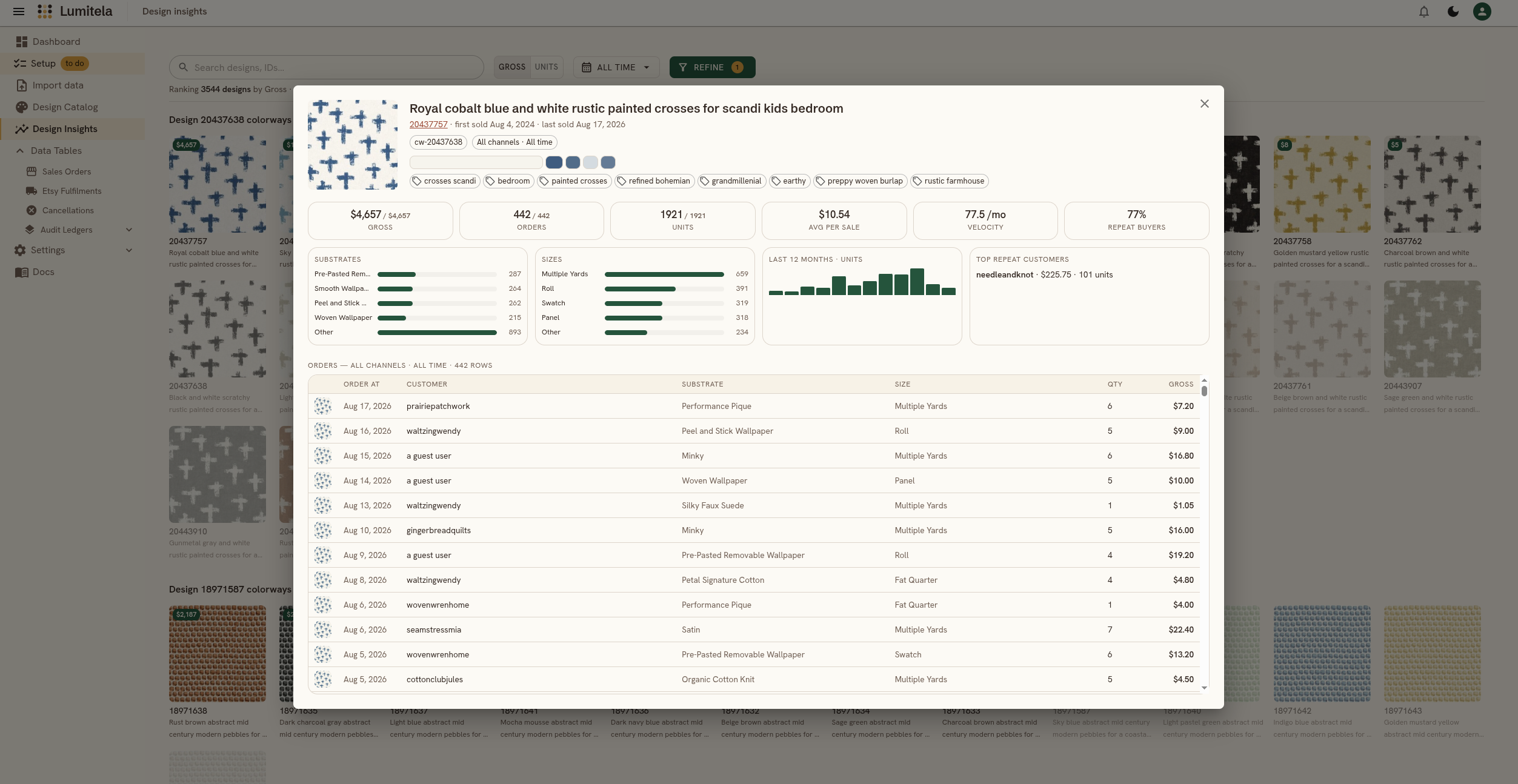
Click any design tile anywhere on the page, in any View, to open its Spotlight: a closer look at that one design (or, in the Colorways view, that one colorway).
- A color palette under the design's title: the 3 to 5 dominant colors Lumitela extracts from the thumbnail, each swatch sized by how much of the design it covers. Click a swatch to see that color as HEX, RGB, HSL, and OKLCH, each with a copy button, ready to paste into your design tools. Palettes are computed in the background shortly after your catalog syncs; a shimmering "extracting colors…" strip means this design's turn hasn't come up yet, and it fills in by itself, usually within a few minutes.
- The design's tags, as synced from Spoonflower, so you can see at a glance which search keywords it carries.
- A stat row across the top: gross, orders, and units for your current period, each shown alongside its lifetime total; average gross per sale (lifetime); a velocity figure (average units sold per month since this design's first sale); and the share of its lifetime orders placed by repeat customers.
- Substrates and Sizes panels break down units sold by substrate and by size, as bars; past five distinct values, the smaller ones roll up into an "Other" bar.
- A channel split, but only for designs sold on more than one channel: a two-color bar at exactly two channels, or a small donut once you sell it on three or more, by unit share. Underneath (or in its place, for a single-channel design) sits a 12-month histogram of units sold.
- Top repeat customers: your best customer by gross, and by units if that's someone different, for designs that have any repeat buyers yet.
- An orders table listing every order for this design in your current period and channel filter, newest first; click a row to open that order.