Forward your Spoonflower and Etsy order emails in real time
Why forward your email
Once your history is backfilled, forwarding is how Lumitela stays current. There's nothing to install and no password to hand over: you just add a forwarding rule in your own mailbox, and every new order confirmation reaches Lumitela within a minute or two of arriving. Before you set this up, make sure your order email address is added and verified. See Profile & email addresses if you haven't done that yet: Lumitela only routes mail for addresses it has verified belong to you.
What to forward
Whatever email provider you use, Lumitela needs exactly three kinds of email forwarded to inbox@lumitela.com, and nothing else:
| From | Subject contains | What it is |
|---|---|---|
admin@spoonflower.com |
Spoonflower purchase from |
Your Spoonflower orders |
transaction@etsy.com |
You made a sale on Etsy |
Your Etsy orders |
orders@spoonflower.com |
Receipt for Order |
Your Etsy fulfillments (or direct orders from you to Spoonflower) |
The first row is all a Spoonflower-only seller needs. The other two are for Etsy sellers: the Etsy order is what the buyer paid you, and the Spoonflower receipt is what you paid to fulfill it, which is how Lumitela works out your true margin per sale.
There are two ways to get these emails to Lumitela:
- Auto-forward with filter rules (recommended): set up filtering rules in your email provider that match the three rows above and forward the matches to
inbox@lumitela.com. This is the "live" path: every new order flows in by itself from then on. Prefer filters over "forward everything"; only your order emails should leave your inbox. - Forward as attachments, by hand: select order emails in your mailbox and use your mail app's Forward as attachment, up to 40 per message, sent to
inbox@lumitela.comfrom your verified address. This matters: opening an email and pressing plain Forward will not work, because a regular forward rewrites the email and strips what Lumitela needs. It must be forwarded as an attachment.
This description is deliberately provider-neutral: every mail provider can do this, the setting is just in a different place. If yours isn't covered below, apply the table above using your provider's filtering or rules feature, or paste this section into an AI assistant and ask how to set it up for your provider.
One more thing forwarding can't do: it only catches mail from the moment the rules are in place. For your historic Etsy orders and fulfillment emails, export them from your mailbox instead and import the export: Lumitela reads .eml and .mbox files, in bulk, as a .zip, a Takeout export, or simply a whole folder of email files dropped on the Import data page. See Import your Spoonflower sales history for the step-by-step.
Gmail step-by-step
The instructions and video below are Gmail-specific; they're the same three rules from the table above, set up as Gmail filters.
First, add Lumitela as a forwarding address. Go to Settings → Forwarding and POP/IMAP → Add a forwarding address → enter inbox@lumitela.com. Gmail then asks you to confirm. Within a minute, a "Confirm in Gmail" prompt appears in Lumitela, on the Setup page and next to that inbox on Profile → Channels, and the same link is emailed back to the inbox you are setting up, so it is in your Gmail too. Click it. Back in Gmail, the new address can take a couple of minutes (and a refresh or two) to show up in the forwarding settings; that's just Gmail being slow, and you can't create the filters until it does. Leave the global "Forward a copy of incoming mail" option disabled: you'll forward through filters instead, so only order emails ever leave your inbox.
Do this once per inbox. If your Etsy fulfillment receipts arrive at a second address, that mailbox needs its own forwarding address and its own confirmation; Lumitela shows each inbox's prompt on its own row under Profile → Channels.
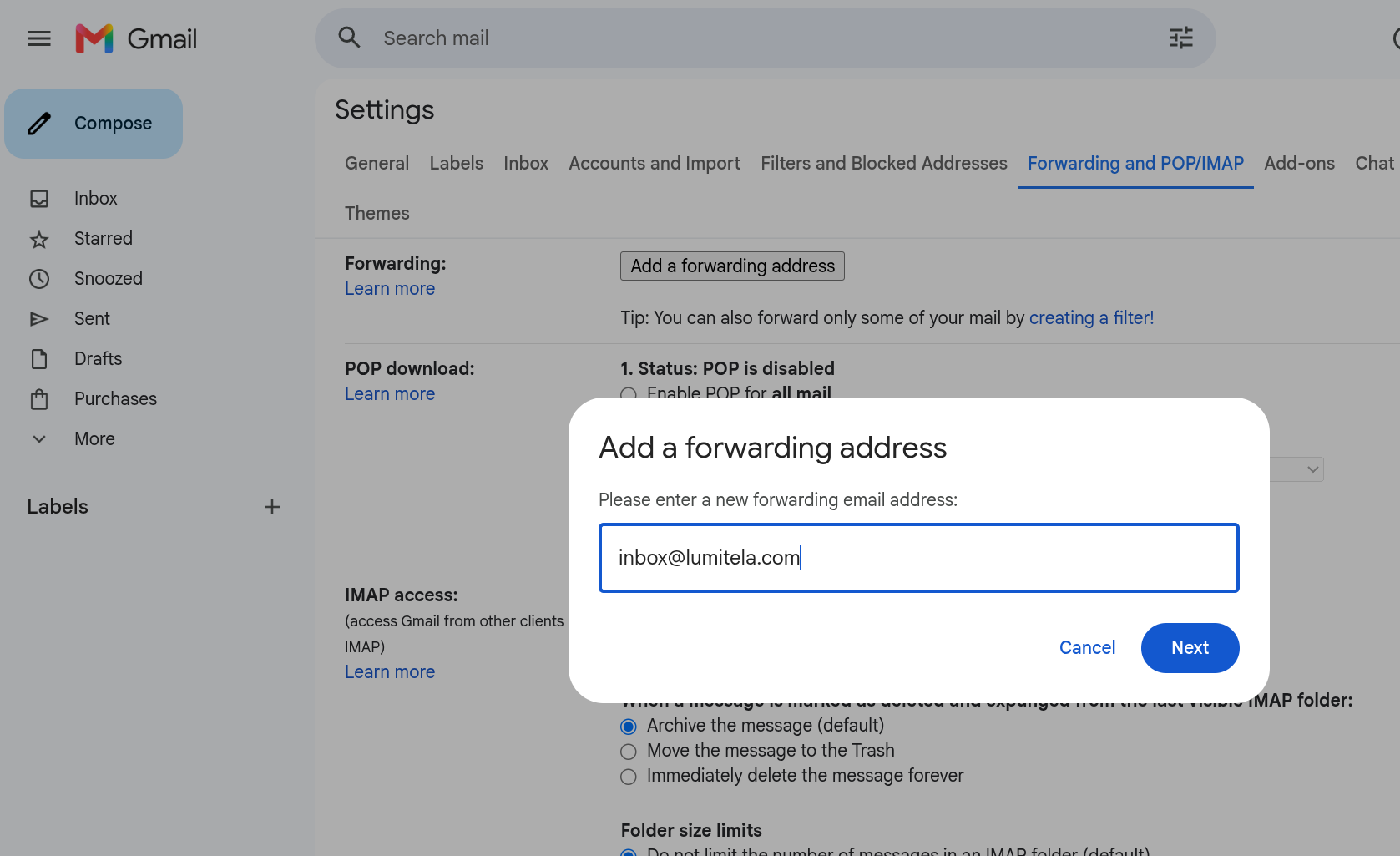
Then create the filters. Go to Settings → Filters and blocked addresses → Create a new filter, and create one filter per row of the table above: enter the sender in the From field and the subject words in the Subject field → Create filter → tick Forward it to inbox@lumitela.com. (Skip the Etsy rows if you don't sell there.)
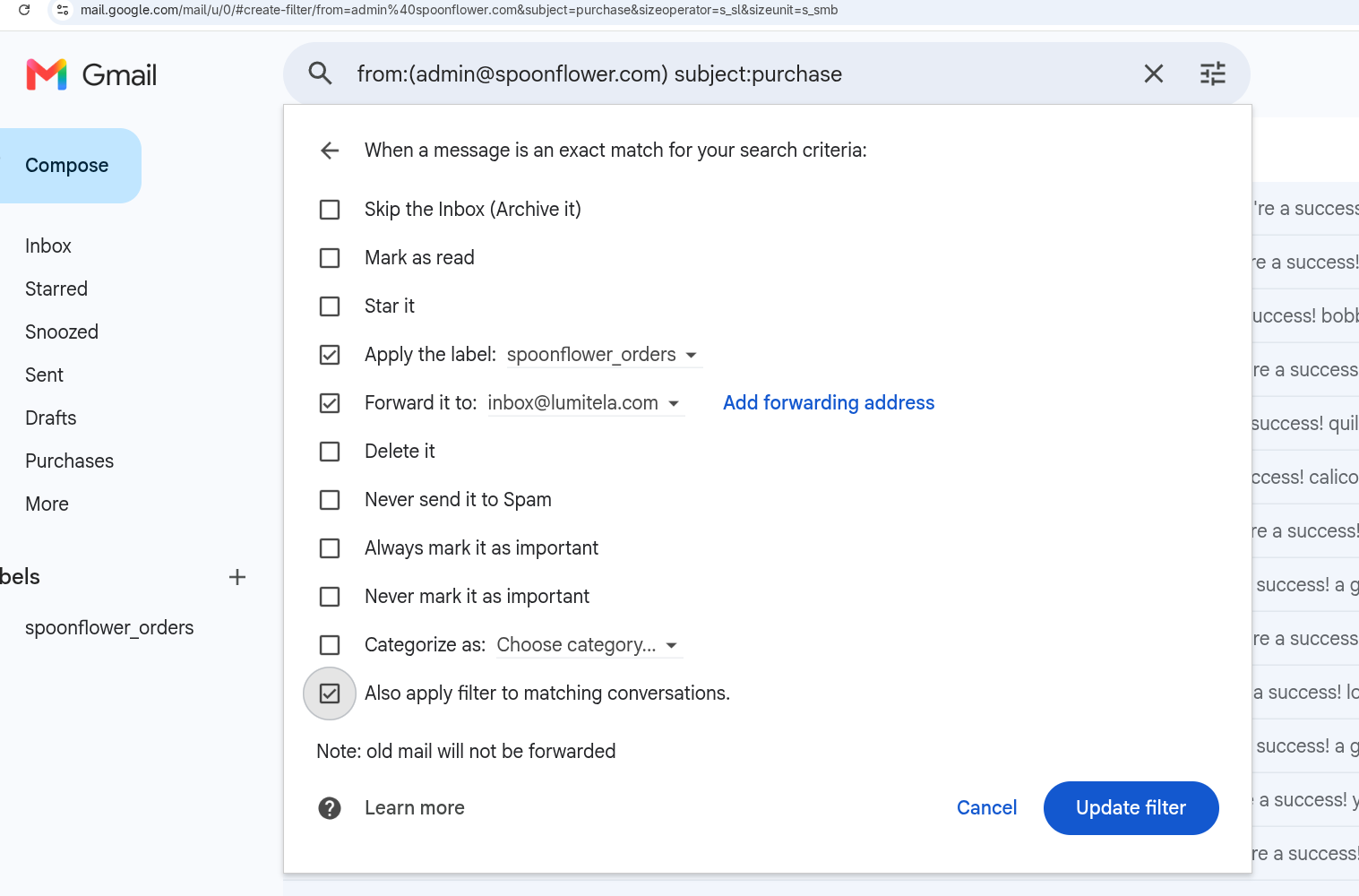
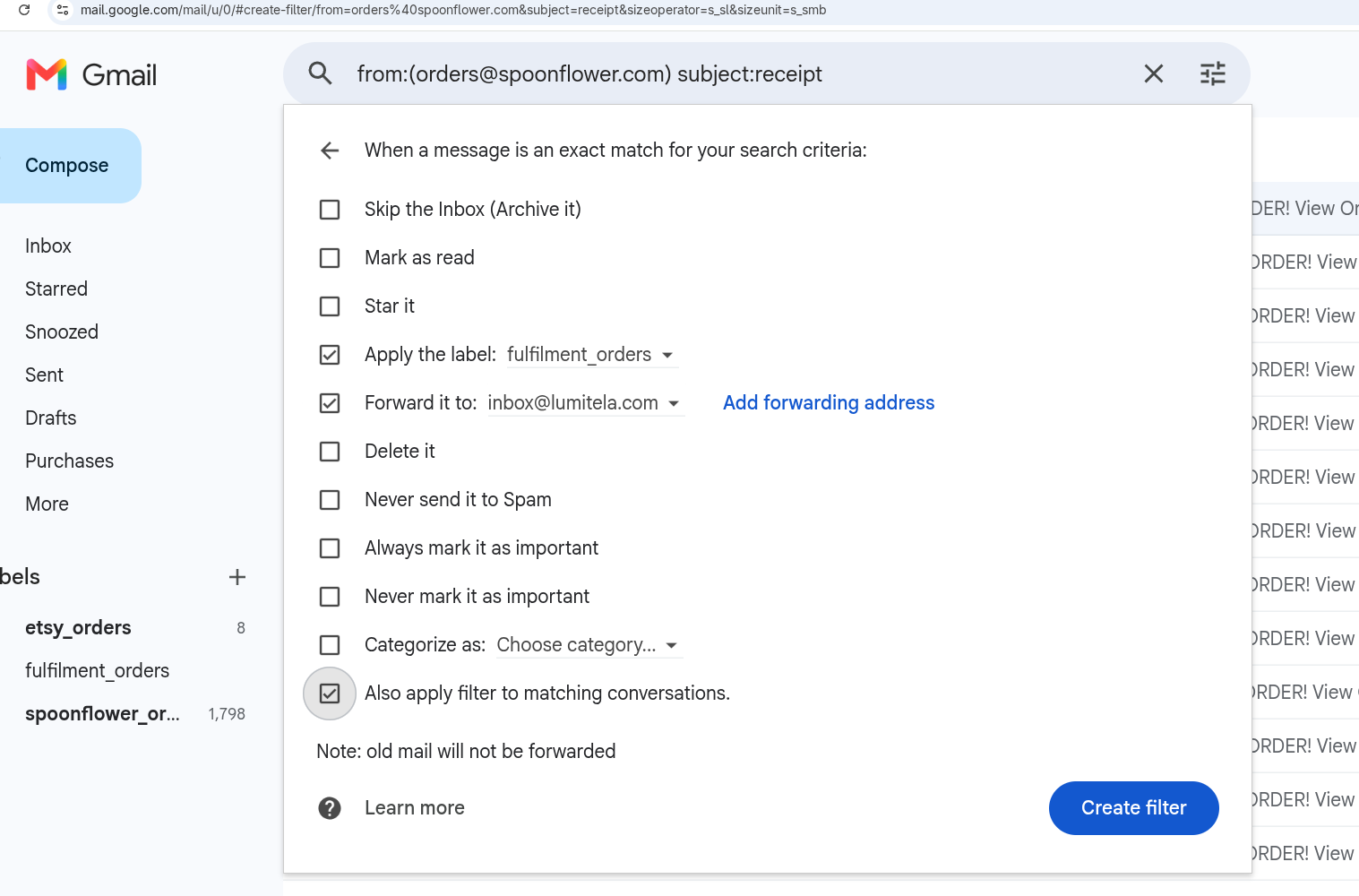
That's it: Gmail's own confirmation is picked up automatically, so there's no extra step to tell Lumitela you've finished. Ticking Apply the label on each filter (with labels like "spoonflower_orders") is optional, but worth doing while you're here: it keeps your order emails tidy, and those same labels make exporting your email history with Google Takeout a one-tick job later.
Other email providers
The goal is always the same: forward (or, better, redirect, which keeps the original headers intact) the three kinds of email in the table above to inbox@lumitela.com, from the mailbox you've added and verified in Lumitela. Any provider that can filter and forward works: Outlook, Yahoo, Zoho, Proton (paid plans on some of these), iCloud, or your own domain's mail. The What to forward table is everything you or an AI assistant needs to set it up. If your provider sends a confirmation email when you add the forwarding address, it appears on your Lumitela Setup page so you can complete the link.
How to confirm it worked
You don't need to take Lumitela's word for it that forwarding is set up right: it proves itself. Once the rules are in place, your next new order flows through, and that's what actually turns the step on. You'll see it in a few places:
- The Setup page stops waiting and shows the forwarding step as done, usually within a minute or two of a new order arriving.
- The new order appears in your Orders list and on your dashboard totals.
- Any pending "confirm forwarding" prompt (the Gmail confirm banner, or another provider's confirmation card) clears itself, since a routed order is proof the address works.
If nothing shows up after a real new sale, double-check the forwarding address is exactly inbox@lumitela.com and that your rules match the senders and subjects in the table above; see Troubleshooting for more.
Starting the Gmail confirmation again
"Verified" in Lumitela means you have proved the inbox is yours. It does not mean Gmail has agreed to forward from it: that is Gmail's own confirmation, and Gmail can lose it, for example after you remove and re-add the forwarding address, or if the confirmation was never completed. Each inbox on Profile → Channels says where it stands: the date of the last forwarded email, or "No forwarded email has arrived from this inbox yet".
To start Gmail's side again, click Set up forwarding on that inbox's row. It walks you through the Gmail steps: remove inbox@lumitela.com from the forwarding addresses if it is listed, add it again, and Gmail sends a fresh confirmation. Within a minute the Confirm in Gmail button appears on that row, and the same link lands in that inbox. Lumitela cannot make Gmail send the confirmation; only adding the forwarding address in Gmail does that.